
MODULE 04 · STEP 11 · trainable
Extension requirements and verification
What this lesson produces
You will explicitly load a teaching Extension that only registers the /bluebook-check command, and see for yourself that the command appears, runs, and then disappears once it is disabled. The desktop notification is placed at the end of this lesson as an advanced design; the notification inside the terminal is not disguised as a system notification.
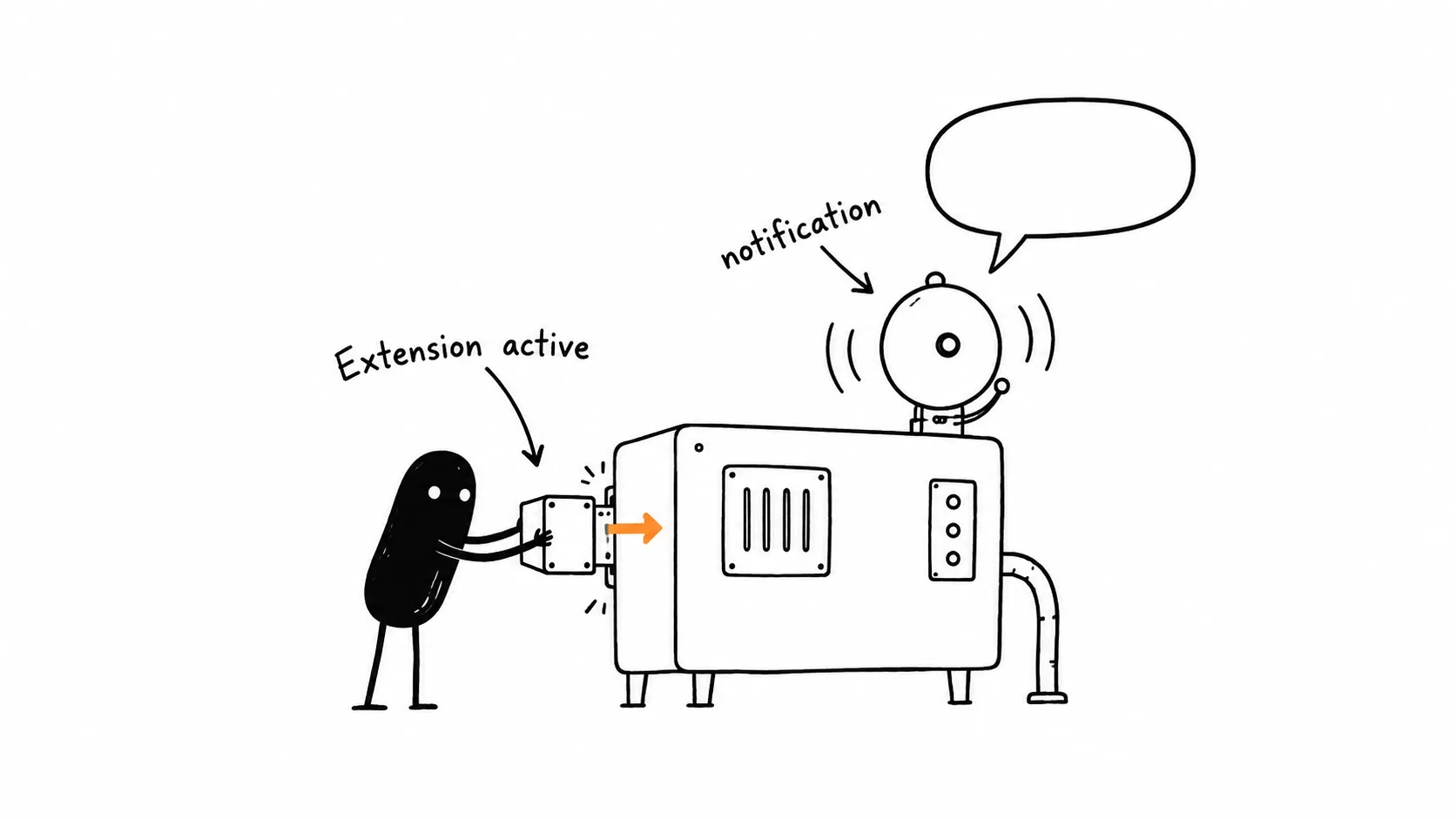
My understanding of Extensions started with one small annoyance. While Pi was running a long task, I switched to another window, and I did not immediately notice when the task had stopped.
This need is a good fit for a first Extension, because the trigger condition is clear, the system action is simple, and it is easy to verify.
State the need clearly first
Do not immediately write “build the perfect system notification”. Set four boundaries for the first version first:
- Only consider a reminder for when the Agent has finished working and is waiting for a new message.
- Do not interrupt when the terminal is in the foreground.
- The reminder content does not contain the full text of a private task.
- A failure of the reminder must not break the Pi session itself.
Here you can already see the outline of an Extension: it has to receive Pi events, judge the status, and then perform one system action.
Understanding where files go
Pi can load user-level or project-level Extensions. When learning for the first time, it is best to start with a self-contained practice project and let only this project use it. That way its origin is easy to see, and when something goes wrong it is easy to disable.
The project trust prompt is not an excessive barrier. Project-level Extensions run code, and what they can do depends on the current user's permissions. You may only trust the project once you know where the file came from and roughly what it does.
The current official automatic discovery locations are the user level ~/.pi/agent/extensions/ and the project level .pi/extensions/. Files placed in these locations can be reloaded with /reload inside Pi; this lesson uses -e with an explicit path for a one-off test, and does not install the teaching file permanently.
Practice: loading a minimal Extension
This time we will not build a desktop notification right away. First test the complete loading flow with a command that does no file reading or writing and has no network access, and only then discuss the extra boundaries a system notification needs.
1. Download and read the code all the way through
Exit Pi, then in a normal terminal go into pi-practice and run:
mkdir -p bluebook-examples
curl -fL https://pi.argakuka.com/en/examples/extension/bluebook-check.ts \
  -o bluebook-examples/bluebook-check.ts
Open this file. The complete code has only one import, one default function, and one registerCommand call; after the command runs, it only shows one Pi interface notification through ctx.ui.notify. If what you downloaded differs, stop and do not load it.
2. Loading it only for this launch
Run in a normal terminal:
pi --no-extensions -e ./bluebook-examples/bluebook-check.ts--no-extensions ignores other Extensions found automatically, and then -e adds this lesson's file explicitly. Once you are in Pi's edit area, type:
/bluebook-checkYou should see the interface notification “The Buku Pi Extension is loaded; this command does not read or modify any files.” This proves the command is registered and its handler function ran successfully; it does not prove that desktop notifications, background tasks, or other Extension capabilities are available.
The fixed notification is Pi interface feedback after /bluebook-check ran. This time the launch was offline, and the command itself does not call a model, read or write files, or access the network. Whether disabling worked still has to be checked by restarting as in the next step.
3. Disabling and re-checking
Type /quit to return to the normal terminal, then run directly:
pi --no-extensionsAt this point /bluebook-check should no longer be an executable Extension command. If it still appears, first check whether this launch's command really had no -e, then check whether .pi/extensions/ in the project and the user directory ~/.pi/agent/extensions/ contain a file with the same name. Do not delete files you do not recognize; just note their origin and stop.
If the Extension has a syntax error, Pi will show a load error. Save the full error and the file path, then restart with the command without -e to skip this lesson's Extension; a load failure is not a reason to delete the session or the practice material.
Verifying with observable results
When you actually build the desktop notification, you should at least test three situations:
| Scenario | The result you should get |
|---|---|
| The terminal is in the background, the Agent really finishes the task | One visible reminder appears |
| The terminal is in the foreground, you are looking at Pi | No extra reminder appears |
| A tool call is still running, or there are still messages in the queue | Do not mistake an intermediate state for done |
A command that prints a series of control characters only proves the command was called. It does not prove the notification actually appeared on the macOS desktop. The final evidence must include real interface observation, and must hide the username, paths, and private content.
After finishing the basic loading, open the custom exercise CASE 04, change one command name and its notification text, then verify disabling it; do not just stop at downloading ready-made code.
From a minimal command to a desktop notification
When you actually finish this small feature, you will go through one complete Extension development cycle: start from a real need, find the event, write minimal behavior, reload, reproduce the scenario, and check the side effects.
Among the current official Extension events, agent_end marks the end of one process at the lower layer, and after that there may still be automatic retries, compaction retries, or queued message processing; for integrating the status “the task will no longer continue automatically”, agent_settled should be evaluated first. But “whether the terminal is in the foreground” and “how to call macOS, Windows, or Linux desktop notifications” are operating system capabilities, and cannot be solved cross-platform with a single event.
The advanced case study is not claimed as finished
This lesson has completed the full Extension cycle: downloading, reviewing, loading, running, and disabling. The background desktop notification still needs separate verification for operating system notification permissions, foreground-position judgment, and the real interface; until there is a real screenshot and a reproducible scenario, do not mark it as verified.
Verifying this lesson
- You have read the
.tsfile that is actually loaded, and can point out the command it registers and its one visible action. - When launched with
-e,/bluebook-checkshows the expected notification. - When launched again without
-e, that teaching command is no longer available. - Even if the code fails to load, you can still skip that file and get back into Pi, and the original session and practice material are not deleted.
Basis for this chapter
The Extension API and the agent_settled event were verified on 2026-09-09. The teaching file was actually loaded in Pi 0.80.10 on this machine, the bluebook-check command registered successfully, and it returned the expected interface notification request.