
MODULE 05 · STEP 13 · trainable
Long-running tasks and VPS
When Pi starts handling cleaning, review, or build tasks that take hours, your local machine runs into problems like going to sleep when the laptop lid closes, network switches, and terminal windows being closed. I eventually moved some long tasks to a VPS, mainly so the operating environment would be more stable and my Mac would not have to stay awake the whole time.
This is how I use it, not a mandatory choice for everyone.
Check the prerequisites first
Without a VPS you can already log into yourself over SSH, you do not need to buy a server for this lesson. Finish the local "checkpoint and recovery" exercise first. The tmux operations below are only suitable for readers who can already log into their own VPS; the commands are typed in a normal remote terminal, not in Pi's edit area.
A VPS does not automatically keep a task in the foreground
If you log into a VPS over SSH and then run Pi in the foreground, that process can still end when the SSH connection drops. A VPS provides an environment that stays on, while a persistent terminal tool like tmux is what lets you reconnect to the same terminal session after a disconnect.
First decide whether you really need a VPS
Situations where it is fine to stay local for now:
- You are just starting to learn Pi and are still working on exercises that take a few minutes.
- The task depends on applications, images, or private files on your local machine.
- You are not yet comfortable with SSH, Linux file paths, and their permissions.
Situations where a VPS starts to be worth considering:
- The task needs to run for a long time and you do not want it disturbed by local sleep mode.
- The work materials can be placed clearly in a remote project directory, without depending on local interfaces.
- You already know how to limit permissions, save sessions, inspect processes, and back up work results.
Stable remotely does not mean the task is reliable
A VPS does not automatically fix a direction that has gone off track, missing context, missing credentials, or inadequate output quality. It only makes it easier for the process to keep running. Every long task still needs:
- Intermediate results that can be inspected.
- Clear stop conditions and failure handling.
- Regular checkpoints, not being left unattended.
- Independent verification and backup once it is done.
Keeping a terminal session alive with tmux
This section only gives the minimum concept; it does not cover buying a VPS, hardening SSH, or firewall configuration. On a VPS that already has tmux installed, you can create a named terminal session:
tmux new -s pi-workOnce inside, move to the correct project directory and then run Pi. To leave temporarily without ending the session, press Ctrl+B, release, then press D. After that, log back into the VPS and run:
tmux attach -t pi-workOnce you reconnect, check with your own eyes whether Pi is still running, whether it is waiting for input, and inspect the intermediate results. Being able to reconnect to tmux only proves the terminal session still exists; it is not enough to prove the Pi task has not failed.
How to handle common situations
| Symptom | Next step |
|---|---|
tmux: command not found | Do not keep copying commands; install it according to the official package manager instructions for the VPS system, or just do the local exercise first |
The session name pi-work already exists | Check with tmux attach -t pi-work; do not create a session with the same name |
can't find session | Run tmux ls to check the actual names; if there is no session, it means the old session has already ended |
| After reconnecting you only see a normal shell | Pi has exited or was never running; check the work results and logs first, and do not immediately claim the task is still running |
| Key combinations turn into ordinary newlines | Check the tmux extended-keys configuration; do not send unfinished multi-line tasks in a row |
Pi officially recommends tmux 3.5 and newer with extended-keys and csi-u enabled, to distinguish Enter, Shift+Enter, and Ctrl+Enter. Changing ~/.tmux.conf will affect your remote terminal environment; read the official tmux settings first, and do not blindly change existing configuration just for this lesson.
A reusable long-task description
Goal: tidy the articles in the source directory, and create a table of contents.
Scope: read only from source, write only to output.
Intermediate results: after every 20 articles processed, update output/progress.md.
Stop conditions: stop when you find a corrupted file, need to log in, or are about to access another directory.
Verification: give the file count, the failure list, the files produced, and the re-check commands.
If these boundaries do not yet run smoothly locally, moving them to a VPS will only make debugging more remote. Validate with a small sample first, then move the same workflow to the remote machine.
Local practice: resume from a checkpoint after a disconnect
Download three very short fictional materials and a progress template. The following commands are typed in a normal local terminal; first, go back to your own practice directory:
cd ~/Downloads/pi-practice
pwd
mkdir -p long-task/source long-task/output
for name in article-a article-b article-c; do
  curl -fL "https://pi.argakuka.com/en/examples/long-task/source/${name}.md" \
    -o "long-task/source/${name}.md"
done
curl -fL https://pi.argakuka.com/en/examples/long-task/progress-template.md \
  -o long-task/progress.md
Run find long-task -type f -print. Before the first exercise begins, you should see only the three source materials and progress.md, and long-task/output/ should be empty. If the directory already contains old output, use a new directory name; do not use mkdir -p to keep appending over existing files, because results from the previous session would be counted twice.
After making sure pwd ends with your practice directory name, start the first session in a normal terminal:
pi --name "Checkpoint practice - first step"Once you see Pi's status bar still pointing to the same practice directory, ask Pi to work only on the first article and update the checkpoint. In this task, require every article to use a level-two heading in the index so that checking the count later is easier:
Read long-task/progress.md and long-task/source/article-a.md.
In long-task/output/index.md, use “## filename” as the level-two heading; on the next line write the original text title and a one-sentence summary,
then update the completed item count, the files already processed, and the next step in long-task/progress.md.
Work on only this article, then stop and wait for my verification.
Type /quit to exit Pi, then open long-task/output/index.md and long-task/progress.md independently. Make sure the completed item count is 1, the processed list contains only article-a.md, and the next step points to a file that has not been processed. After that, in the same normal terminal, confirm pwd, then start a new session:
pwd
pi --name "Checkpoint practice - recovery"
Once the status bar still points to the same practice directory, send:
Read long-task/progress.md first, then list the files in long-task/source that have not been processed.
Finish the remaining files one by one; in long-task/output/index.md keep using “## filename” as the level-two heading,
and each time an article is finished, update long-task/output/index.md and long-task/progress.md together.
Do not repeat files already recorded as done. If you find a corrupted or unreadable file, record it in the failure list and then stop.
Finally, check the counts in a normal terminal:
find long-task/source -type f -name '*.md' | wc -l
grep -c '^## ' long-task/output/index.md
Both numbers should be 3, and the completed item count, the processed files, and the failure list in long-task/progress.md should match the actual files. Matching numbers still do not mean the summary is correct, so open the original texts and the index one by one and compare them.
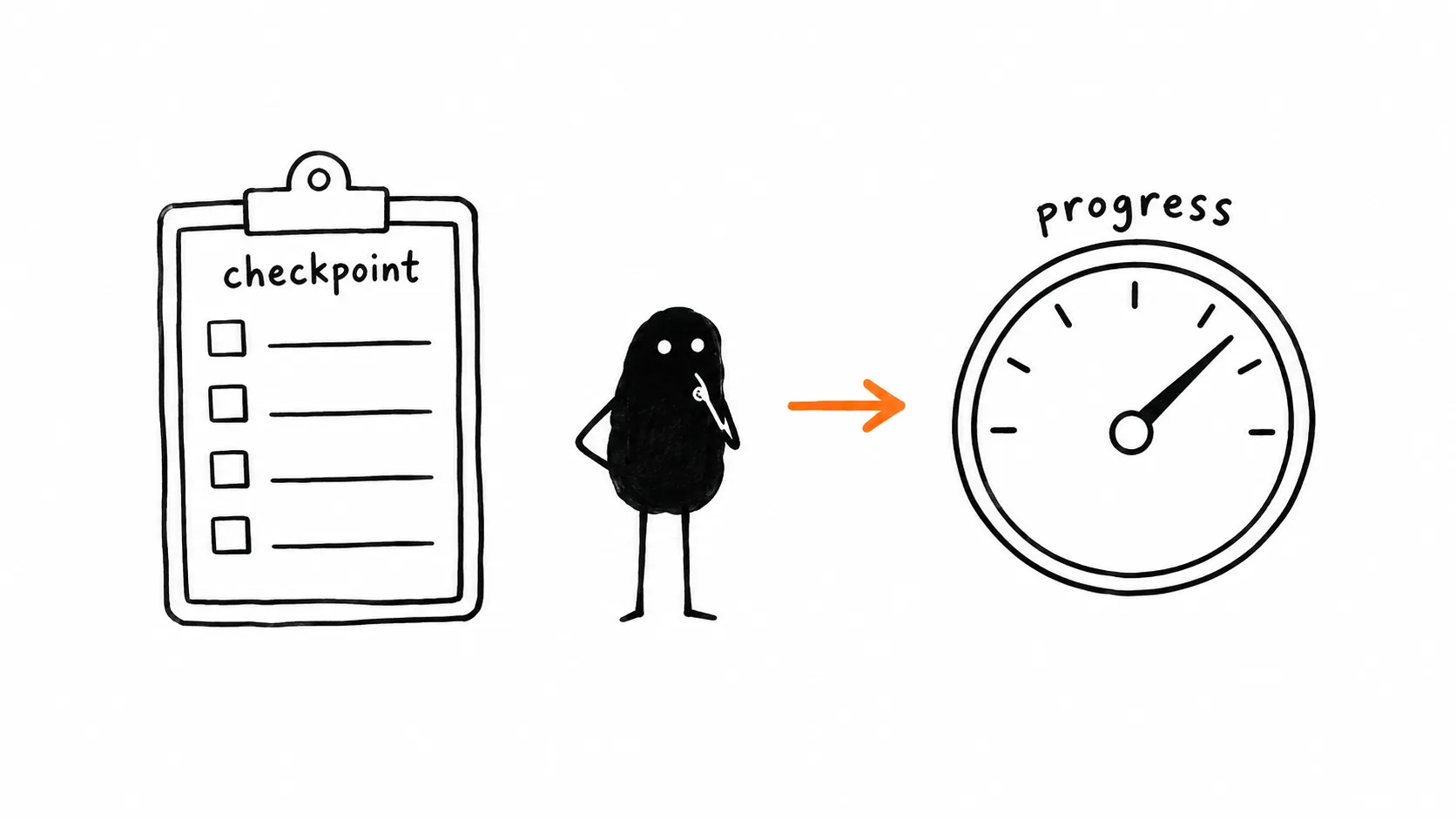
Three independent signals must line up: the source file count is 3, the index entry count is 3, and the progress file also records three processed articles with an empty failure list. Once all three match, compare the summary content of the articles one by one; the same numbers only prove there is no conspicuous count gap.
Verifying this lesson
- You can judge from
long-task/progress.mdwhat has been processed and what the next step is, rather than relying on an old session's claim. - After a disconnect, nothing among the three materials is repeated or missed, and failed items are not quietly skipped.
- If you use a VPS, you can detach from tmux, reconnect to the same session, and distinguish "the terminal still exists" from "the task is finished".
References
The tmux-related notes were verified on 2026-09-09.
tmux can keep a terminal session alive, but it will not automatically recover Pi after a VPS reboot, a process crash, or running out of memory. For tmux's own commands and session lifecycle, see also the official tmux manual.
Optional: Pi Durable
If you are going to build an Agent application that resumes tasks after its process is interrupted, continue with Pi Durable: keeping an Agent working after an interruption. It is an experimental framework, and the progress-file exercise already in this book can still be completed on its own.